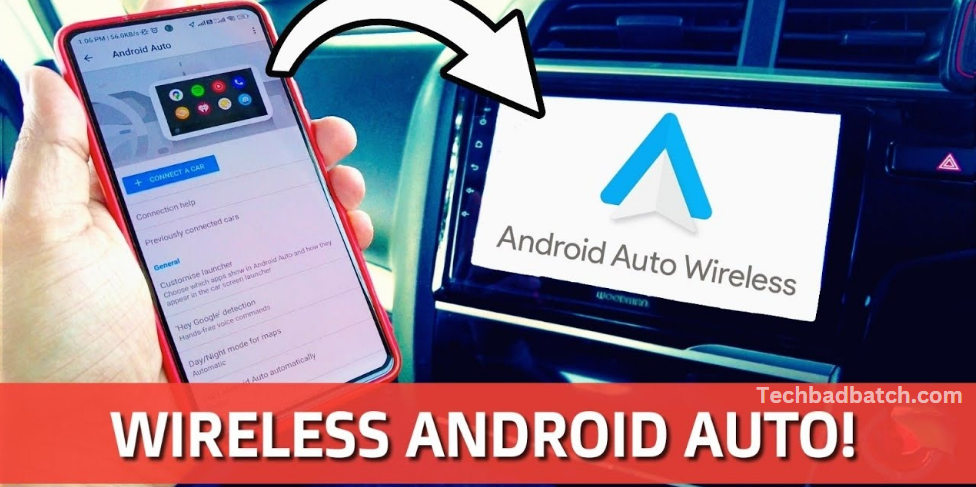
Wireless Android Auto offers a seamless and convenient way to connect your phone to your car’s infotainment system without the need for cables. By enabling this feature, you can access navigation, music, messages, and other apps directly from your car’s screen, all while keeping your hands on the wheel and eyes on the road. If you’re ready to experience the freedom of a cable-free connection, here’s a guide on how to set up and use wireless Android Auto in your vehicle.
What phones support wireless Android Auto?
The first step to using wireless Android Auto is ensuring your Android smartphone supports the feature. Fortunately, finding a device that meets the requirements is relatively easy.
To use wireless Android Auto, your phone needs to meet the following criteria:
- Any Google Pixel or Samsung Galaxy device running Android 10 or higher
- Any Android smartphone with Android 11 or later
- Some Samsung Galaxy devices running Android 9.0 (e.g., Galaxy S8, Note 8)
- 5GHz Wi-Fi support is also required
Most Android smartphones released in recent years should meet these requirements without issue. However, it’s worth noting that these requirements may change over time. Google recently raised the minimum standards for using Android Auto, which resulted in older devices no longer being compatible.
Ensure Your Device is Compatible
Before you can start using wireless Android Auto, it’s essential to make sure your smartphone supports the feature. Fortunately, this is not a major hurdle for most recent Android devices. To use wireless Android Auto, your phone must meet these requirements:
- Android Version:
- Any Google Pixel or Samsung Galaxy device running Android 10 or higher
- Any Android phone running Android 11 or later
- Some Samsung Galaxy models running Android 9.0 (e.g., Galaxy S8, Note 8)
- Wi-Fi Support:
- Your device must support 5GHz Wi-Fi for the wireless connection to work properly.
If your phone meets these criteria, you’re good to go. Otherwise, you may need to update your operating system or use a wired connection instead.
Set Up Android Auto on Your Phone
If you haven’t already, you’ll need to install the Android Auto app on your phone. This app allows your phone to connect with your car’s infotainment system.
Here’s how to set it up:
- Download the Android Auto App:
- Open the Google Play Store.
- Search for Android Auto and install it (if it’s not already pre-installed on your phone).
- Enable Android Auto:
- Open the Settings app on your Android phone.
- Scroll down and select Connected devices.
- Tap Connection preferences and then choose Android Auto.
- Toggle the Android Auto switch to On.
May you also like it:
Some Pixel 8 Pro Displays Have Bumps Under The Glass
Favorite Android Apps To Replace Google Podcasts
Google Pixel 10 Codenames 2025 Report
Best Android Phones On A Budget In 2024
Set Up Your Car’s Infotainment System
To use wireless Android Auto, your car’s infotainment system also needs to support it. Many modern vehicles are equipped with this feature, but if you’re unsure, check the owner’s manual or contact the manufacturer.
Here’s how to set up your car’s system:
- Enable Bluetooth and Wi-Fi:
- Turn on your car’s infotainment system and make sure Bluetooth and Wi-Fi are enabled.
- Pair Your Phone:
- Make sure your phone’s Bluetooth is turned on.
- On your car’s infotainment system, navigate to the Bluetooth or Android Auto settings and follow the prompts to pair your phone.
- Connect to Wi-Fi:
- In some vehicles, your car will automatically switch to the 5GHz Wi-Fi band when pairing for Android Auto. If not, manually select the 5GHz network from your car’s Wi-Fi settings.
Connect Your Phone to Your Car Wirelessly
Once you’ve set up both your phone and your car’s infotainment system, it’s time to connect wirelessly:
- Start Your Car: Turn on your car and make sure the infotainment system is active.
- Enable Android Auto on Your Phone:
- Open the Android Auto app on your phone.
- In the app, select “Connect to car” or simply wait for the automatic connection prompt.
- Automatic Connection:
- When your phone detects your car’s Wi-Fi network, it should automatically establish a wireless connection.
- You may receive a notification on your phone asking for permission to connect. Accept the prompt.
- Start Using Android Auto:
- After the connection is established, your phone’s Android Auto interface will appear on the car’s display. You can now use apps like Google Maps, Spotify, and more directly from your dashboard.
Troubleshooting Wireless Android Auto
While wireless Android Auto is convenient, you may occasionally run into connection issues. Here are some troubleshooting tips:
- Ensure Wi-Fi is enabled on both your phone and car: Wireless Android Auto relies on a stable Wi-Fi connection. Make sure both devices are connected to the same network and using 5GHz Wi-Fi.
- Restart the connection: If the connection fails, disconnect and reconnect your phone. You can also try restarting your phone or your car’s infotainment system.
- Update your software: Make sure both your phone and car are running the latest software updates. Sometimes, a firmware update on your car’s system or a phone software update can fix connectivity issues.
- Check for interference: Some cars or phone cases may cause interference with the wireless signal. Try removing the case or turning off other connected devices to reduce interference.
Enjoy the Benefits of Wireless Android Auto
Once you’ve successfully connected your phone to your car’s system, you can enjoy a range of features:
- Navigation: Use Google Maps or Waze to get real-time traffic updates and directions.
- Music: Stream your favorite playlists from Spotify, YouTube Music, or any other music app.
- Hands-Free Calls: Make and receive calls using voice commands, keeping your hands on the wheel.
- Messaging: Read and reply to text messages using voice commands, ensuring you stay focused on the road.
Wireless Android Auto is all about convenience and safety. It reduces the need to touch your phone while driving, allowing you to keep your attention where it belongs—on the road.
Frequently Asked Questions
What do I need to use wireless Android Auto?
To use wireless Android Auto, you need a compatible Android smartphone, a car with wireless Android Auto support, and both Bluetooth and Wi-Fi enabled. Your phone should have Android 10 or higher, and it must support 5GHz Wi-Fi. This setup ensures a seamless connection.
Which Android devices are compatible with wireless Android Auto?
Wireless Android Auto works with devices like Google Pixel and Samsung Galaxy phones running Android 10 or higher. Some Samsung Galaxy models on Android 9.0 also support wireless connections. Make sure your phone meets the minimum requirements for optimal performance.
How do I set up wireless Android Auto in my car?
Start by ensuring Bluetooth and Wi-Fi are enabled on your car’s infotainment system. Then, pair your phone with the car using Bluetooth, and allow the phone to connect via 5GHz Wi-Fi. Once paired, Android Auto should automatically launch on your car’s screen.
How do I connect my phone to my car wirelessly?
To connect wirelessly, ensure Bluetooth and Wi-Fi are enabled on both your phone and car. Pair the devices through Bluetooth, and your phone will switch to the 5GHz Wi-Fi network for Android Auto. The connection should be established automatically once everything is set up.
Why won’t my phone connect to wireless Android Auto?
If your phone isn’t connecting, ensure both Wi-Fi and Bluetooth are on, and your devices are paired correctly. Restarting both your phone and car system can often resolve connection issues. If problems persist, check for software updates or re-pair the devices.
Can I still use Android Auto if my car doesn’t support wireless connection?
Yes, you can still use Android Auto with a wired connection. Simply plug your phone into your car’s USB port using a compatible cable. The Android Auto interface will appear on the car’s screen once connected.
What apps can I use with wireless Android Auto?
With wireless Android Auto, you can access apps for navigation (like Google Maps and Waze), music (Spotify, YouTube Music), calls, and messaging. You can also use podcasts and audiobooks through compatible apps. All of these can be controlled hands-free.
How do I troubleshoot wireless Android Auto connection issues?
If you’re having connection issues, make sure your phone and car are on the same 5GHz Wi-Fi network. Try restarting both devices or unpairing and re-pairing them. Also, check for software updates on both your phone and car’s infotainment system.
Conclusion
Wireless Android Auto offers a seamless and convenient way to connect your smartphone to your car’s infotainment system, eliminating the need for cables while keeping your focus on the road. With a compatible phone and car, you can easily access navigation, music, and hands-free calls, making your driving experience safer and more enjoyable. By following the simple setup steps and troubleshooting tips, you can enjoy the full benefits of wireless connectivity in no time. Whether you’re driving your vehicle or a rental, wireless Android Auto enhances your commute and road trips with ease and efficiency.
