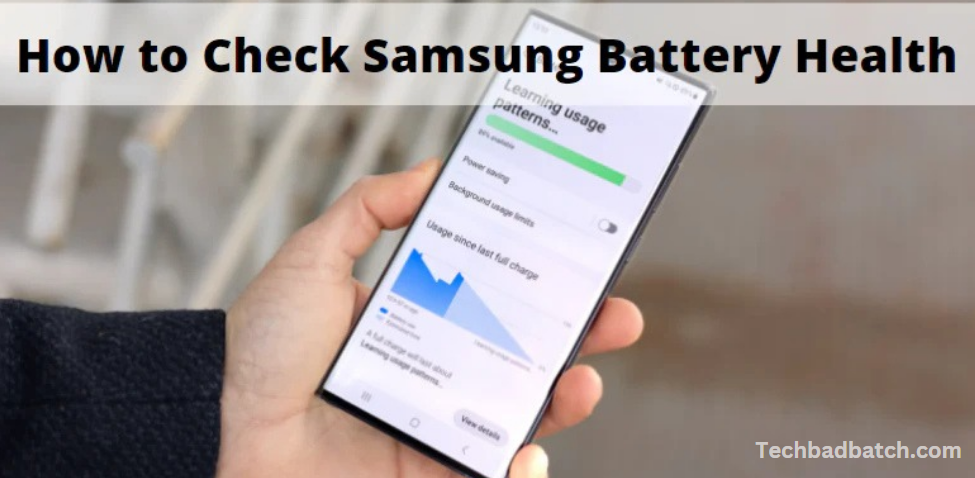
Modern smartphones, including Samsung’s Galaxy devices, feature highly reliable batteries, but it’s still wise to periodically check on their health. This guide outlines how to assess the overall condition of your Galaxy phone’s battery.
With Samsung’s extended support periods for its Galaxy devices, users are increasingly motivated to keep their phones longer. Coupled with the fact that flagship models often see only incremental improvements year over year, holding onto a device like the Galaxy S21 Ultra beyond its initial years makes good sense.
However, a degraded battery can undermine your experience, even if the rest of your device is still performing well. Fortunately, replacing a worn-out battery is straightforward, especially now that Samsung has partnered with iFixit to offer easier access to spare parts. For most users, a battery replacement is a hassle-free process.
If you’re concerned about your battery’s health, you can use Samsung’s official diagnostic tools to check its condition and ensure it’s still performing optimally.
Why Check Your Battery Health?
Smartphones, including Samsung Galaxy models, rely on lithium-ion batteries, which naturally degrade over time. This degradation can be influenced by factors like how often you charge your phone, the types of apps you use, and the temperature at which the phone operates. When your battery starts to wear down, you may notice issues like:
- Reduced battery life (the phone drains faster than usual)
- Phone shutting down unexpectedly
- Slow charging speeds
If you’re experiencing any of these issues, it could be a sign that your battery is nearing the end of its lifespan. Fortunately, Samsung provides several built-in tools that allow you to assess your phone’s battery health and make informed decisions about its replacement.
How to Check Your Battery Health on Samsung Galaxy Phones
Method 1: Using Samsung’s Device Care App
Samsung includes a built-in Device Care app on its Galaxy phones, which allows users to monitor various aspects of their device, including battery performance. Here’s how to use it:
- Open the Settings App: Tap on the Settings icon on your phone.
- Navigate to Battery and Device Care: Scroll down and tap on Battery and Device Care (this may appear as just Device Care on some models).
- Tap on Battery: Under the Device Care menu, tap on Battery. This will show you the current battery status, including the overall usage and charging patterns.
- Check Battery Health: You can see detailed information about how your battery is performing. If the health of your battery is good, you’ll see no warning signs. If there are concerns, you may notice a message about degraded battery performance.
In addition to this, the Device Care section can also show how long your battery lasts based on your usage and offer recommendations for improving efficiency.
May you also like it:
Some Pixel 8 Pro Displays Have Bumps Under The Glass
Favorite Android Apps To Replace Google Podcasts
Google Pixel 10 Codenames 2025 Report
How To Use Wireless Android Auto
Method 2: Using the Samsung Members App
Samsung also provides the Samsung Members app, which allows users to run diagnostics on their device, including battery health checks. To use this method:
- Open the Samsung Members App: If you don’t already have the app, download it from the Galaxy Store or Google Play Store.
- Navigate to the Diagnostics Section: In the app, go to the Support tab at the bottom of the screen.
- Run a Battery Test: Tap on Diagnostics and select Battery to perform a health check. The app will assess your battery and provide feedback about its condition.
This diagnostic tool checks key factors like battery capacity and charge cycles, helping you understand whether your battery is performing within the expected range.
Method 3: Checking Battery Usage in Settings
You can also see how your battery is performing by reviewing your phone’s battery usage data. While this method doesn’t directly indicate the health of your battery, it gives you a good overview of how long the battery lasts under typical conditions.
- Open Settings: Tap on the Settings icon.
- Go to Battery and Device Care: Scroll down to Battery and Device Care.
- Select Battery: Tap on Battery, and then choose Battery Usage.
- Review Battery Usage: You’ll see a breakdown of which apps and services are consuming the most power. Excessive drain by apps may suggest the need to optimize settings or even replace the battery if the phone is old.
Tips for Extending Battery Life
While checking your battery health is important, it’s also essential to adopt habits that can prolong your phone’s battery lifespan:
- Avoid Extreme Temperatures: Keep your phone in a cool place. Excessive heat can degrade the battery more quickly.
- Use Power Saving Modes: Samsung devices come with built-in power-saving modes that limit battery usage when you’re not using your phone actively.
- Keep Software Updated: Software updates often include improvements for battery performance and power management.
- Charge Smartly: Avoid charging your phone to 100% all the time and let it drop to around 20% before charging again. This can help extend battery life in the long run.
When to Replace Your Battery
If your Galaxy phone’s battery is showing signs of wear and tear, such as draining rapidly or failing to hold a charge, it might be time for a replacement. Samsung has made battery replacements easier than ever, thanks to partnerships with services like iFixit, which makes spare parts available for users. You can either visit an official Samsung service center or use trusted repair services to have your battery replaced.
Frequently Asked Questions
Can I check my Samsung Galaxy battery health for free?
Yes, checking your battery health is entirely free. You can use Samsung’s Device Care app or the Samsung Members app to run diagnostics and monitor battery performance without any cost.
Can I replace my Samsung Galaxy battery myself?
While Samsung has made it easier to access replacement parts through a partnership with iFixit, replacing the battery yourself is only sometimes recommended unless you have experience with phone repairs. It’s usually best to visit a professional service center or authorized repair shop to ensure the replacement is done correctly.
How often should I check my Samsung Galaxy phone battery health?
It’s a good idea to check your battery health every few months, especially if you start noticing any issues like rapid battery drain or performance drops. Additionally, after a major software update, it’s helpful to check whether the battery is performing as expected.
What should I do if my battery health is poor?
If the diagnostic tools show that your battery health is degraded, consider replacing it. You can visit an authorized Samsung service center or use a trusted third-party service to replace the battery. Samsung also offers easy access to replacement parts through its partnership with iFixit.
Does battery health affect phone performance?
Yes, degraded battery health can impact overall phone performance. A worn-out battery may cause your phone to shut down unexpectedly or reduce the efficiency of performance-demanding tasks, such as gaming or video streaming. Replacing the battery can help restore your phone’s total performance.
What is the expected lifespan of a Samsung Galaxy phone battery?
On average, a Samsung Galaxy battery should last between 2 to 3 years before showing significant degradation. This depends on factors like charging habits, temperature exposure, and usage patterns. After a few years, if you notice performance issues, it’s worth checking the battery’s health and considering a replacement.
Conclusion
Monitoring the health of your Samsung Galaxy phone’s battery is an essential step in maintaining the device’s performance and longevity. Over time, all batteries degrade, but by regularly checking your battery’s health, you can catch issues early and take appropriate action. Samsung provides built-in tools like the Device Care app and Samsung Members app, which make it easy to assess your battery’s condition, track its performance, and optimize its use.
If you notice any signs of battery degradation—such as rapid battery drain, unexpected shutdowns, or slow charging—it’s essential to act quickly. Fortunately, replacing a worn-out battery is straightforward, and with Samsung’s partnership with iFixit, users can easily access replacement parts and services.
