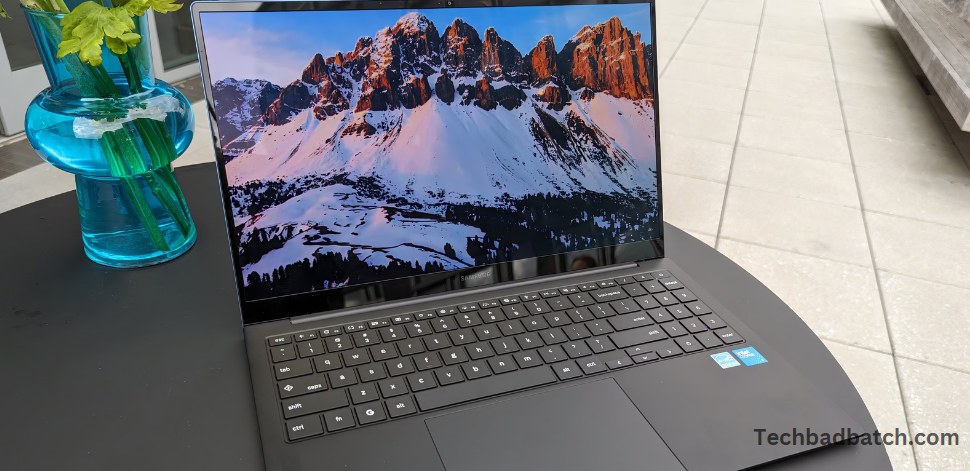
The standard keyboard offers a limited selection of characters, but many additional symbols and punctuation marks can be useful. However, these characters are not always readily available on a Chromebook’s QWERTY keyboard. This guide will demonstrate how to use Unicode shortcuts to access and type special characters on a Chromebook.
What is a Unicode character?
On any computer, there is a system that allows you to input special symbols and characters by entering their corresponding codes. When you enter the correct code, the desired symbol appears in your text. For example, if you need to insert an em-dash, you can easily access it by typing its specific code.
This method proves especially useful for the frequent use of certain symbols. Rather than navigating through a program’s insert menu and scrolling through a long list of characters, you can enter the code to quickly insert the symbol you need. With practice, memorizing these codes can significantly streamline your workflow.
Typing special symbols and characters on a Chromebook
Typing special symbols and characters on a Chromebook is made easy through a system of shortcuts and Unicode codes. While the standard QWERTY keyboard offers a limited selection of characters, you can use these shortcuts to access a wide range of symbols and punctuation marks that are not directly labeled on the keys.
To type special characters, you can either use keyboard combinations or enter Unicode codes. For example, to type an em-dash, you can use a specific keyboard shortcut or input its Unicode code directly. Once you become familiar with these shortcuts, you can efficiently insert symbols without needing to navigate through menus, saving time and improving productivity.
This guide will show you how to access these special characters and make the most of your Chromebook’s built-in typing features beyond the standard keyboard options.
Using Keyboard Shortcuts for Special Characters
Chromebooks have a few built-in keyboard shortcuts that make typing special characters quick and easy. While these shortcuts don’t cover every symbol, they are a convenient way to access commonly used punctuation marks and symbols. Here are a few useful ones:
Common Keyboard Shortcuts:
- Em-Dash (—): Press
Ctrl + Shift + U, then type2014and pressEnter. - Copyright Symbol (©): Press
Alt + 0169(using the numeric keypad, if available). - Euro Symbol (€): Press
Ctrl + Shift + 5to insert the Euro symbol. - Degree Symbol (°): Press
Ctrl + Shift + U, then type00B0and hitEnter.
These shortcuts work on most Chromebooks and are great for inserting common symbols without having to search for them.
Using Unicode Codes to Type Special Characters
If you’re familiar with Unicode codes, you can use them to type a wide variety of special characters and symbols on your Chromebook. Each character or symbol has a specific Unicode code, which you can type using the following steps:
How to Use Unicode on a Chromebook:
- Enable Unicode Input:
- Press
Ctrl + Shift + Uto enter Unicode input mode. - You’ll see an underlined “u” appear on the screen.
- Press
- Enter the Unicode Code:
- Type the Unicode code for the symbol or character you want. For example, to type the heart symbol (♥), you would enter
2665.
- Type the Unicode code for the symbol or character you want. For example, to type the heart symbol (♥), you would enter
- Press Enter:
- After typing the code, press
Enter, and the corresponding symbol will appear in your text.
- After typing the code, press
This method is beneficial for advanced users who need to type symbols that aren’t easily accessible through keyboard shortcuts or the emoji picker.
May you also like it:
Is The Galaxy Watch 5 And 5 Pro Waterproof? What You Need To Know
What’s New in Android 14? A Comprehensive Guide
How To Check Your Samsung Galaxy Phone Battery Health
Google Pixel 10 Codenames 2025 Report
Using the Emoji Picker for Special Characters
Chromebooks have a built-in emoji picker, which can also be used to insert special symbols, such as arrows, stars, and various punctuation marks.
How to Use the Emoji Picker:
- Open the Emoji Picker:
- Press
Search + Shift + Spaceon your Chromebook to open the emoji picker.
- Press
- Browse or Search for Symbols:
- You can either browse through the available symbols by scrolling through the categories or use the search bar at the top to find a specific symbol (e.g., “heart,” “star,” “arrow”).
- Select the Symbol:
- Click on the symbol you want to insert, and it will be added to your text.
The emoji picker provides a simple way to insert special symbols, especially if you’re looking for decorative or commonly used characters.
Using Google Docs to Insert Special Characters
If you’re working in Google Docs on your Chromebook, there is an easy way to insert special characters using the built-in menu:
How to Insert Special Characters in Google Docs:
- Open Google Docs:
- Open your document in Google Docs on your Chromebook.
- Insert Menu:
- Click on the “Insert” menu in the top toolbar.
- Select Special Characters:
- From the dropdown, select “Special characters.”
- Choose Your Symbol:
- In the dialog box that appears, you can either browse or search for the character you want to insert.
- Click to Insert:
- Once you find the symbol, simply click on it, and it will be inserted into your document.
This method is beneficial for those who need to insert less common symbols or characters into documents or presentations.
Using Online Tools and Extensions
If you often need to type a wide variety of memorable characters and symbols, you might find it helpful to use online tools or browser extensions. These tools provide an easy-to-use interface where you can copy and paste special characters into your text.
Recommended Tools and Extensions:
- Unicode Table: Visit a Unicode table website, such as Unicode Table, to easily copy and paste characters.
- Character Map Extensions: You can install Chrome extensions like “Character Map” or “CopyPasteCharacter” from the Chrome Web Store to quickly access a wide range of symbols.
Frequently Asked Questions
How do I type symbols and special characters on a Chromebook?
You can type special characters on a Chromebook using multiple methods. One way is by using keyboard shortcuts, which allow you to type symbols like the em-dash (—) or the Euro symbol (€). Another option is using Unicode input, where you enter a specific code to generate the symbol you want. Lastly, you can access symbols via the emoji picker, which provides quick access to many commonly used characters.
What is the Unicode input method on a Chromebook?
The Unicode input method allows you to type special symbols by entering their Unicode code. To activate it, press Ctrl + Shift + U, followed by the code for the symbol you want to type, such as 2665 for a heart symbol. Once you press Enter, the corresponding symbol will appear in your text. This method is beneficial for symbols not readily available through other shortcuts.
How can I insert an em-dash (—) on a Chromebook?
To type an em-dash (—) on a Chromebook, you can use the Unicode input method. First, press Ctrl + Shift + U, then type 2014 and hit Enter. The em-dash will appear in your document or text field. Alternatively, you can use a keyboard shortcut or access it through Google Docs’ special character menu for an even faster way to insert this punctuation mark.
How do I type the copyright symbol (©) on a Chromebook?
Typing the copyright symbol (©) on a Chromebook is simple with the right shortcuts. Press Alt + 0169 on the numeric keypad, and the symbol will appear. If you’re not using a numeric keypad, you can use the Unicode input method by pressing Ctrl + Shift + U, typing 00A9, and then pressing Enter to insert the copyright symbol into your text.
Can I type the Euro symbol (€) on a Chromebook?
Yes, typing the Euro symbol (€) on a Chromebook is easy. Press Ctrl + Shift + 5 to instantly insert the symbol. If you prefer using Unicode, press Ctrl + Shift + U, type 20AC, and press Enter. Both methods work quickly and effectively when inserting the Euro symbol without needing to search through menus.
Conclusion
Typing special characters and symbols on a Chromebook doesn’t have to be complicated. With several methods at your disposal, including keyboard shortcuts, Unicode input, and the built-in emoji picker, you can easily access a wide range of symbols without interrupting your workflow. These techniques allow you to insert everything from punctuation marks to more complex characters quickly and efficiently.
Whether you need a simple symbol like the copyright sign or a more advanced character, mastering these methods will save you time and enhance your productivity. By incorporating these shortcuts and tools into your daily routine, you’ll be able to type special characters on a Chromebook with ease.
